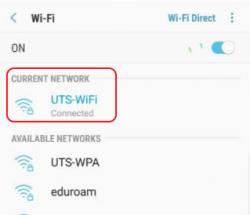


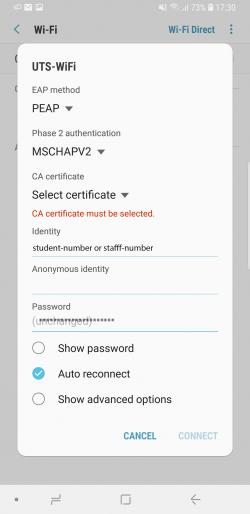
Your Android should now be connected to UTS-WiFi
To connect to UTS-WiFi using an Android device:
- Tap Apps
- Tap Settings
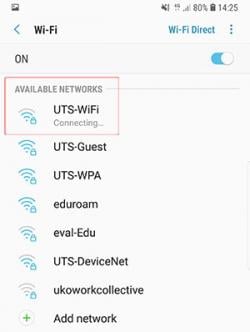
- Tap Wi-Fi
- Tap UTS-WiFi
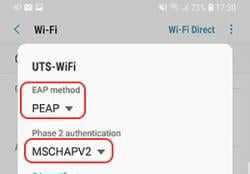
- Ensure EAP Method is PEAP and Phase 2 Authentication is MSCHAPV2
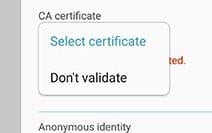
- For the Select certificate you can choose Use System Certificate if this option is available, otherwise choose Don't validate
- Leave the Anonymous identity field blank
- Enter your UTS student number (or staff number if you are a member of staff) in the Identity field
- Enter your UTS IT password in the password field
- If you are on a newer Android device or are using Android 12, you may need to add a domain to the WiFi network before you are able to connect. In the domain field, enter "uts.edu.au". Additionally you may need to set your certificate field to "Use system certificate".
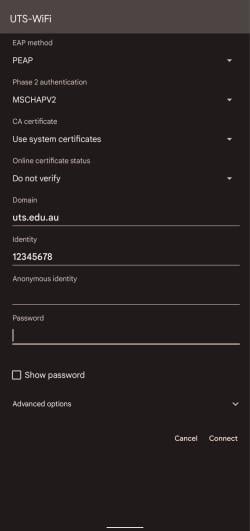
- Tick Auto reconnect to ensure that it is on
Your Android should now be connected to UTS-WiFi