

PXaelZj7gQI

Transcript

To connect your MacOS device to UTS-WiFi:

Step 1. Click the Wi-Fi menu icon on the menu bar of your device.

Step 2. Select "UTS-WiFi" from the list of available networks.

The login dialog box will open.

Step 3. Enter your UTS student number as your username, or your staff number if you are a staff member.

Step 4. Enter your UTS IT password.

Step 5. Click "Continue".

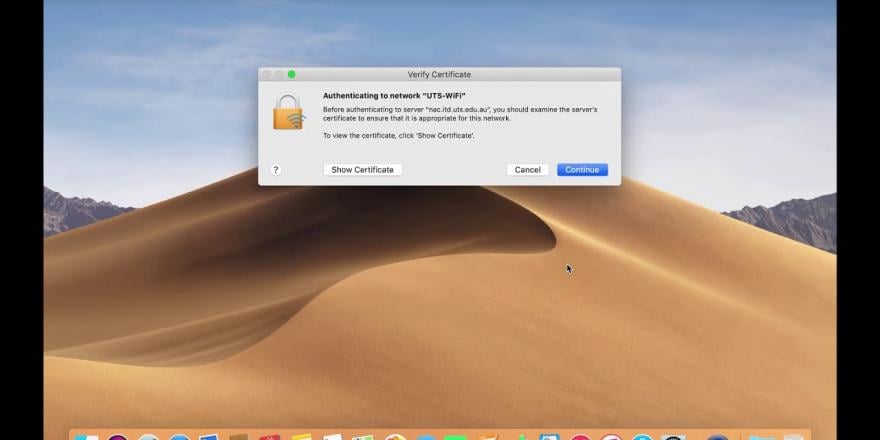
You will see a message indicating your machine is authenticating to the network "UTS-WiFi" when connecting for the first time.

View the certificate; it should be from "nac.itd.uts.edu.au".

Step 6. After clicking "Continue", you may be prompted for your local username and password to store the certificate.

Once the certificate is installed, you should not need to repeat the login and authentication steps to reconnect.

Your MacOS laptop is now connected to the UTS-WiFi network.

To connect your MacOS to UTS-WiFi:

Step 1. To access the Wireless Network, click the Wi-Fi menu icon on the Menu bar of your device

Step 2. Click UTS-WiFi

The Login dialog box will open

Step 3. Enter your UTS student number as your username or staff number if you are a member of staff

Step 4. Enter your UTS IT password
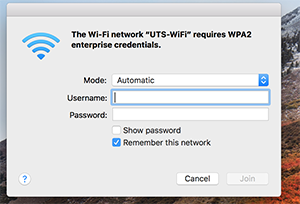
macos login

Step 5. Click Continue.

You will get a message that your machine is authenticating to network "UTS-WiFi" when you connect to UTS-WiFi for the first time.
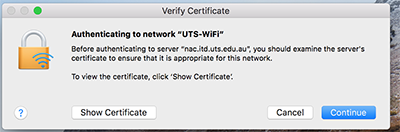
macos authenticate

View the certificate, the certificate should be from "nac.itd.uts.edu.au"
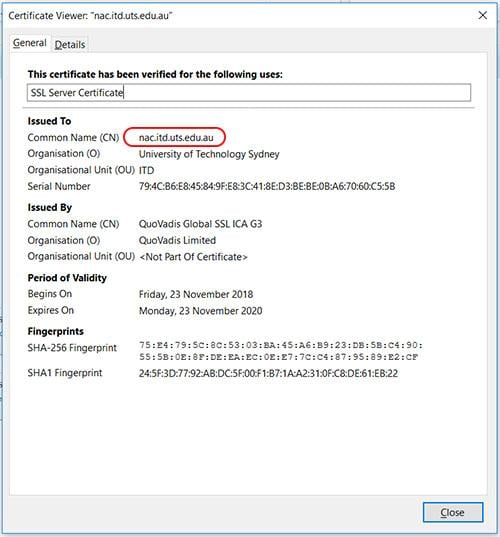
macos new certificate

Step 6. Once you click on Continue, you will get windows which will ask for your local username and password to store the certificate.
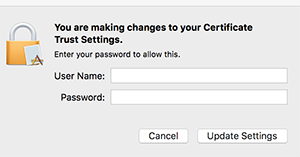
macos trust certificate

Once the certificate is installed you should not need to repeat the login and authenticate steps to reconnect.

Your MacOS lap top will now connected to the UTS-WiFi network
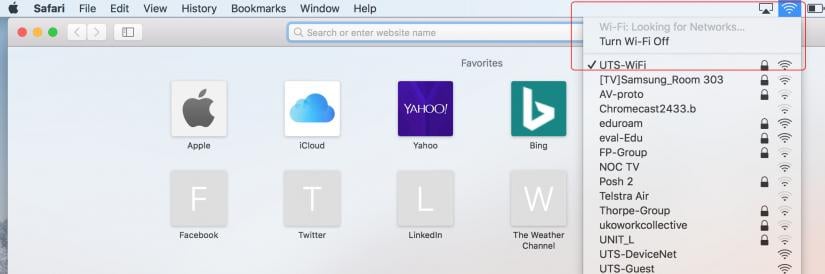
mac os wifi settings