
Your UTS app dashboard has several customisation options to make accessing your apps even easier.
- Enable your 'Recently Used' apps
- Re-order your apps
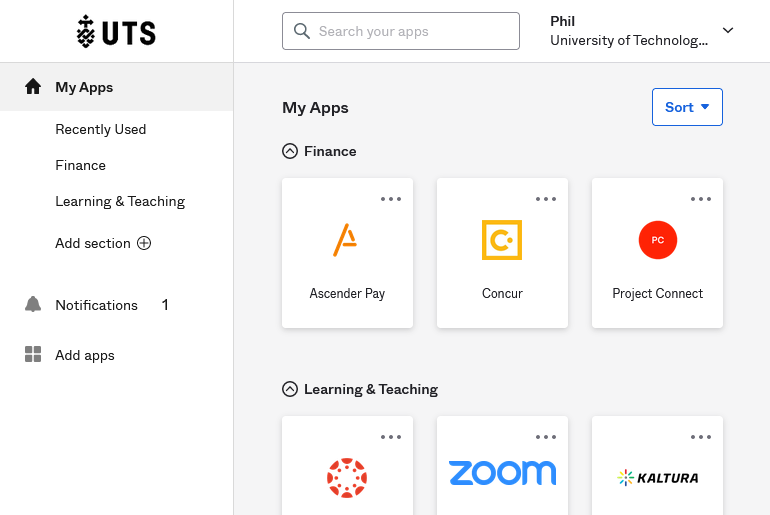
- Use 'Sections' to group your apps together
- Download the Okta dashboard mobile app
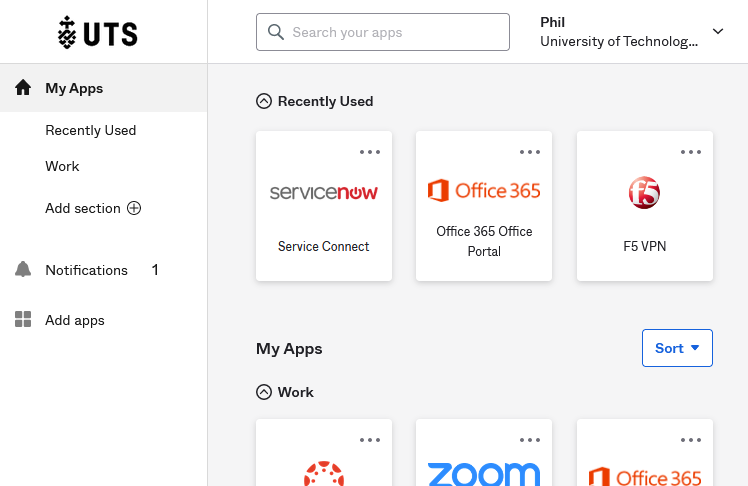
Enable the 'Recently Used' Applications feature
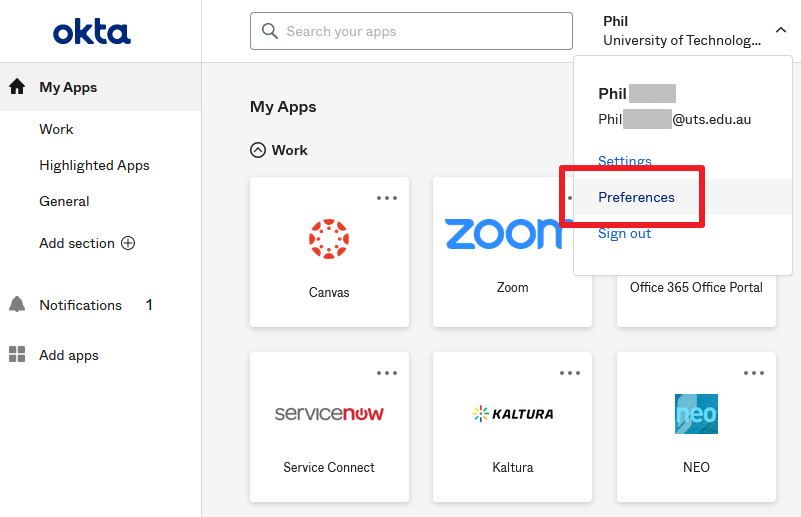
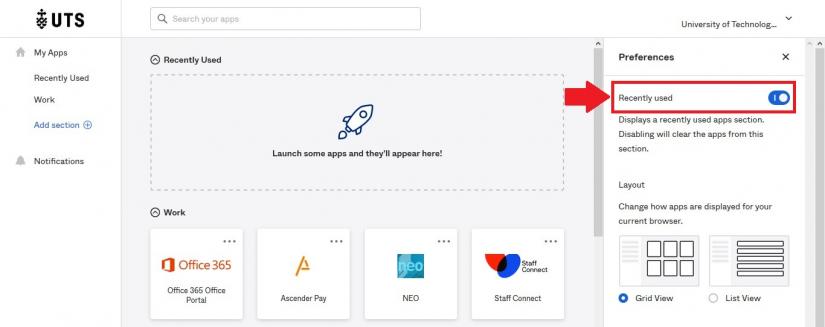
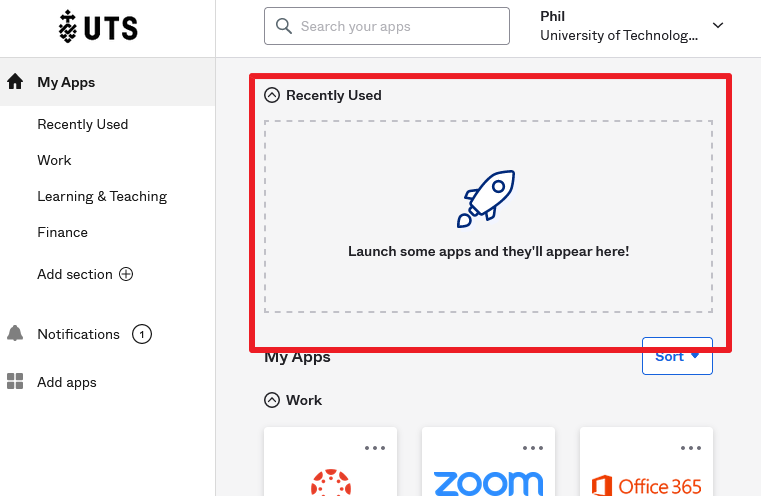
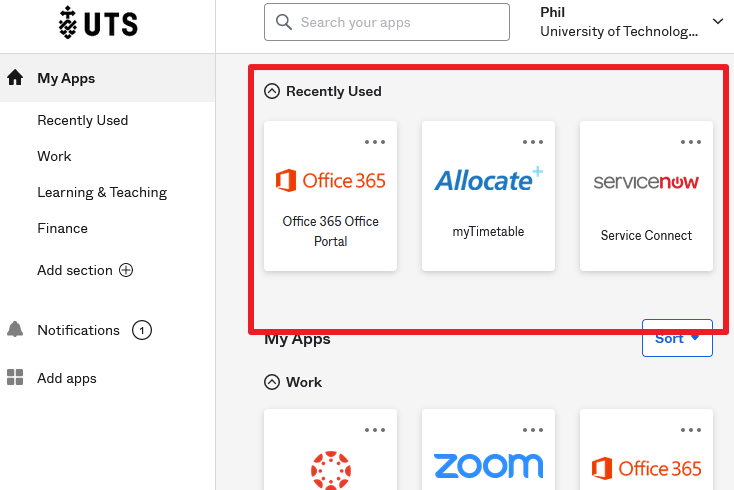
View and access your 2-6 most recently used applications (depending on browser width) by enabling the 'Recently Used' feature. Click on the collapsible menu below for instructions on enabling 'Recently Used'.
Drag and Drop to Re-Order Your Apps
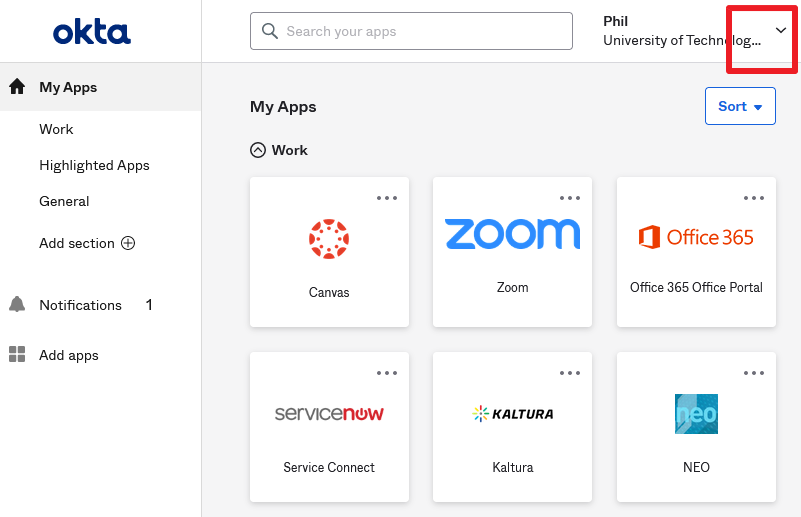
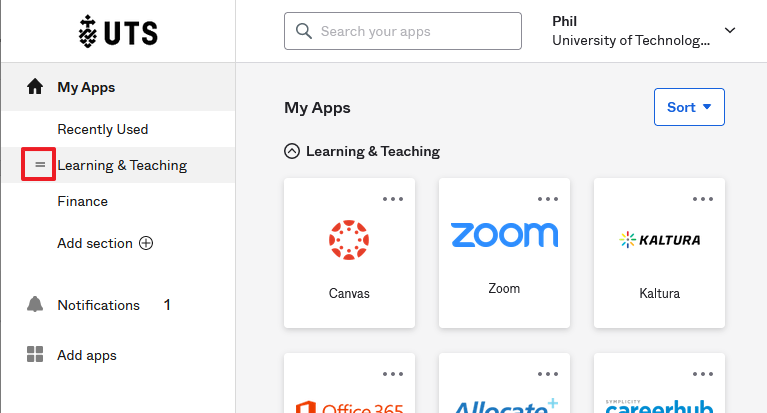
In the 'Sections' view mode you can reposition any app by clicking, holding down and dragging a tile to a new location:
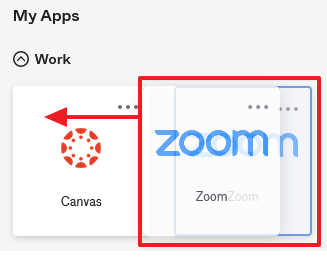
Note: You can switch between 'Sections' view mode and other automated sorting views: 'Name ascending', 'Name descending', and 'Last added'.
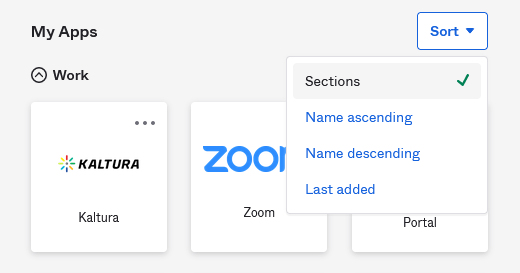
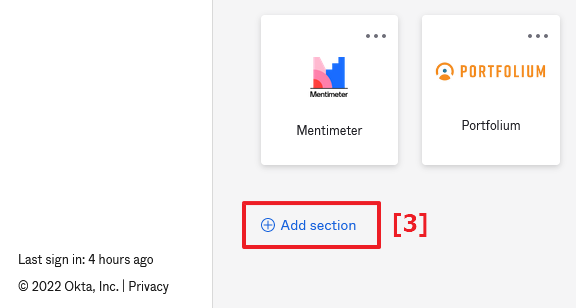
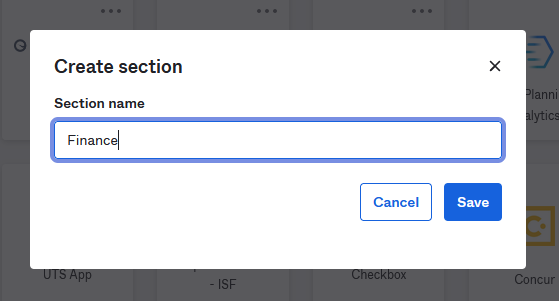
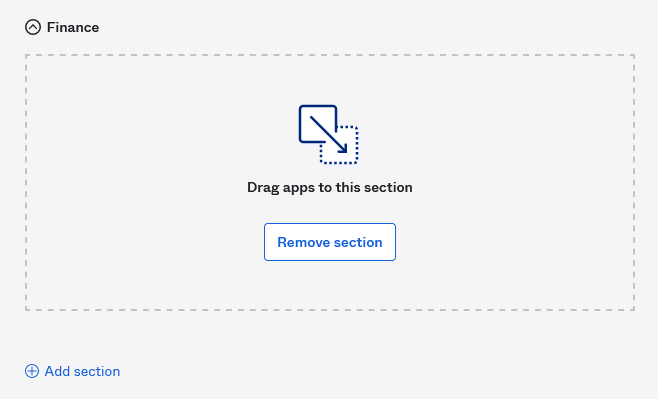
Use ‘Sections’ to Create Custom App Groups
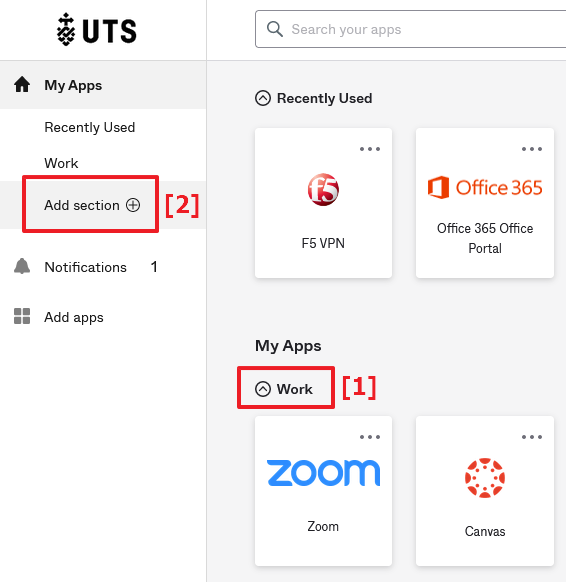
You can group and re-order your app by creating custom sections. Group them by theme, or create a manual group of your most frequently used apps.
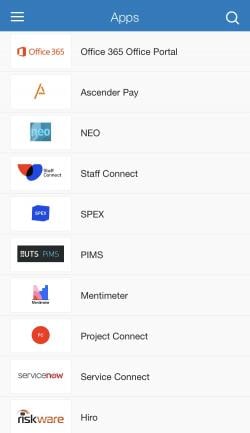
Okta Mobile app
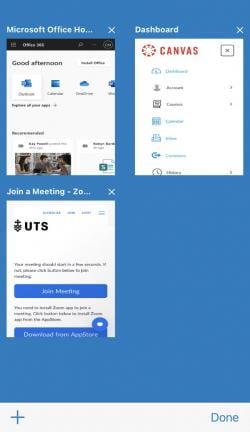
Okta Mobile is the mobile app that lets you easily access all of your UTS applications on a mobile phone or tablet. The Okta Mobile app can be downloaded from Google Play or Apple iOS app store. Note: This app is different to the Okta Verify app that is used for verification when logging in.
- Sleek display of all UTS applications on your mobile device
- Enables you to quickly move between applications