

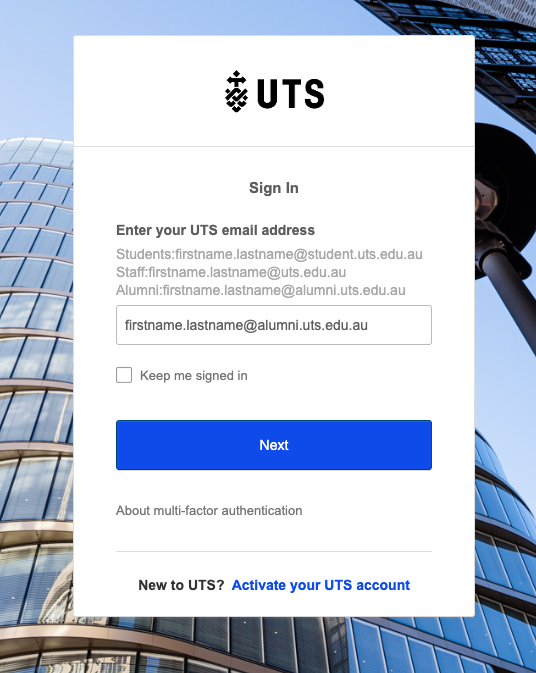
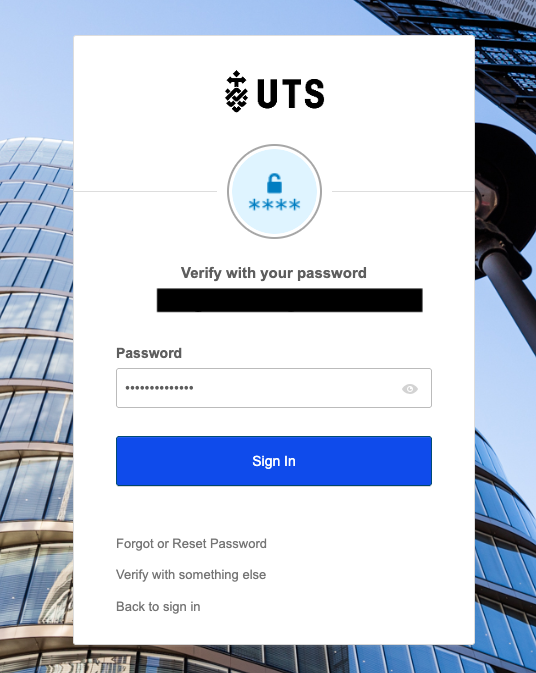
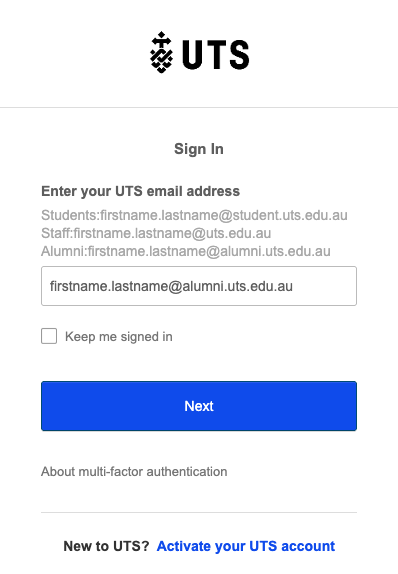
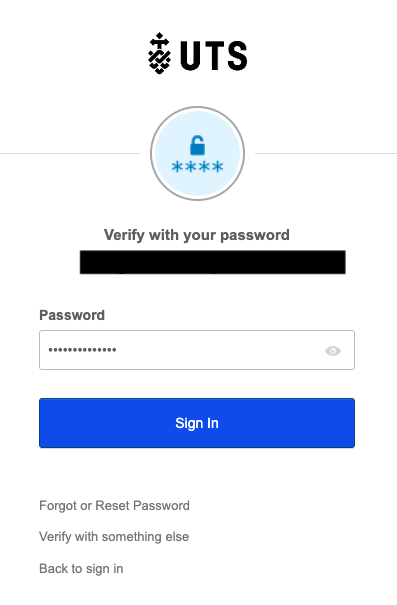
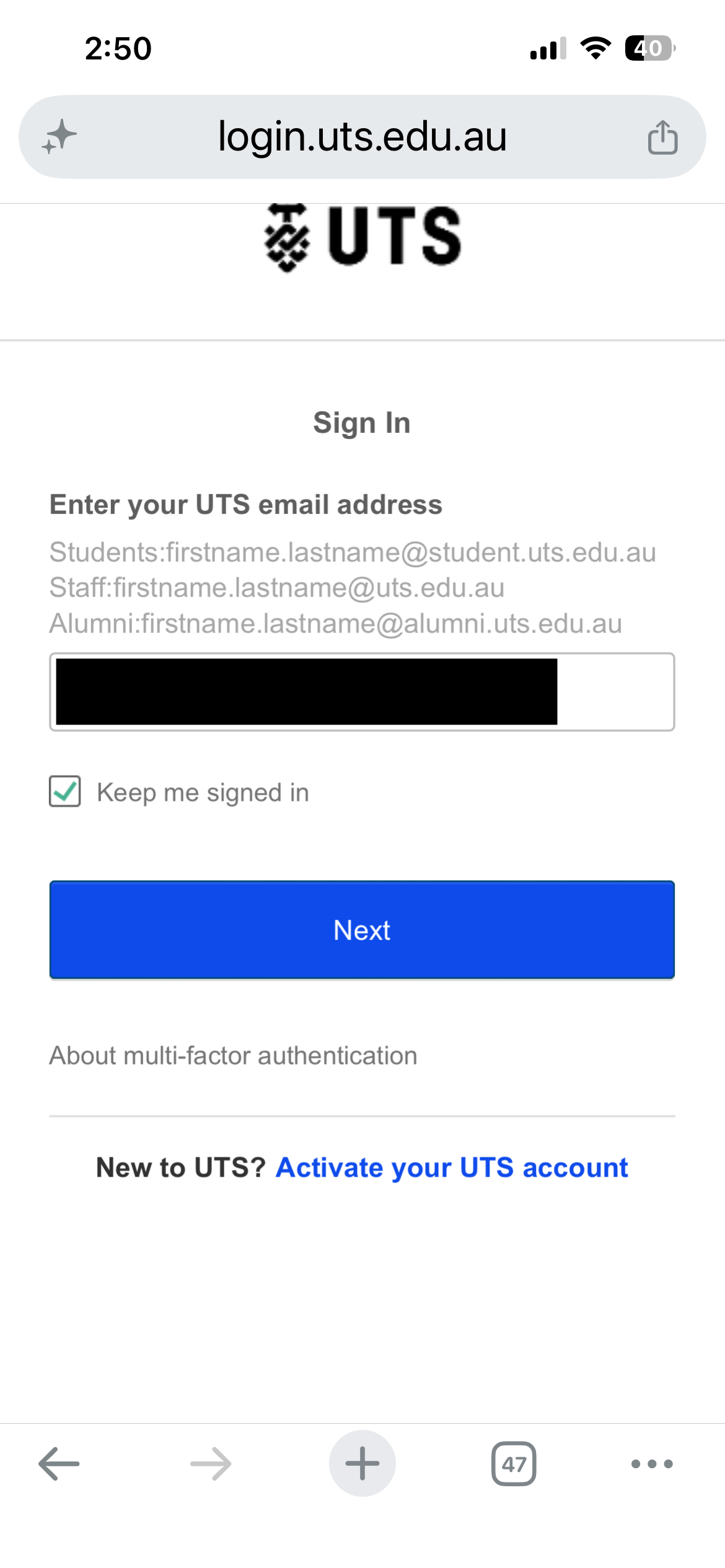
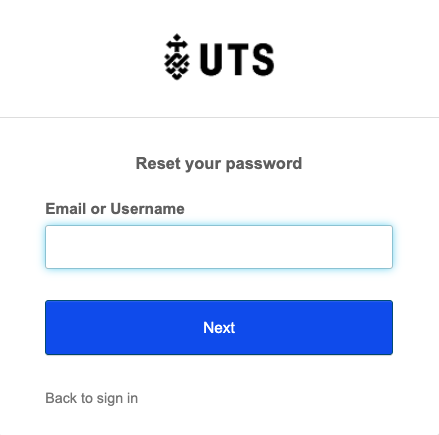
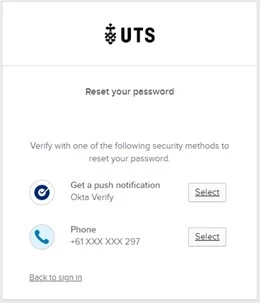
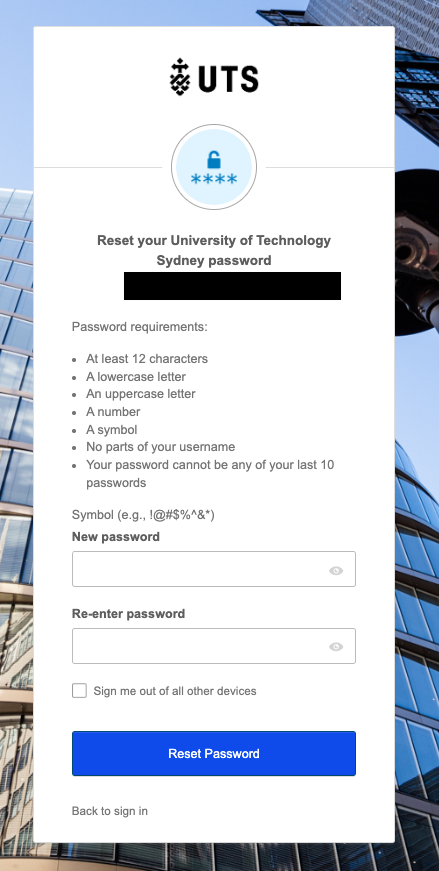
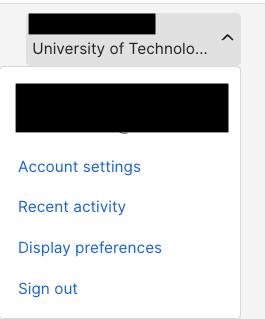
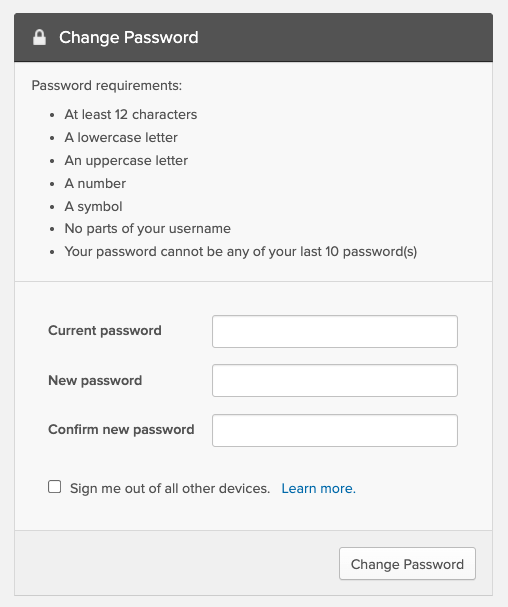
To access UTS applications, alumni will need to enable multi-factor authentication (MFA) and reset their passwords using their full alumni email address.
Enabling MFA and updating your password makes your alumni account more secure, and protects UTS from risk.
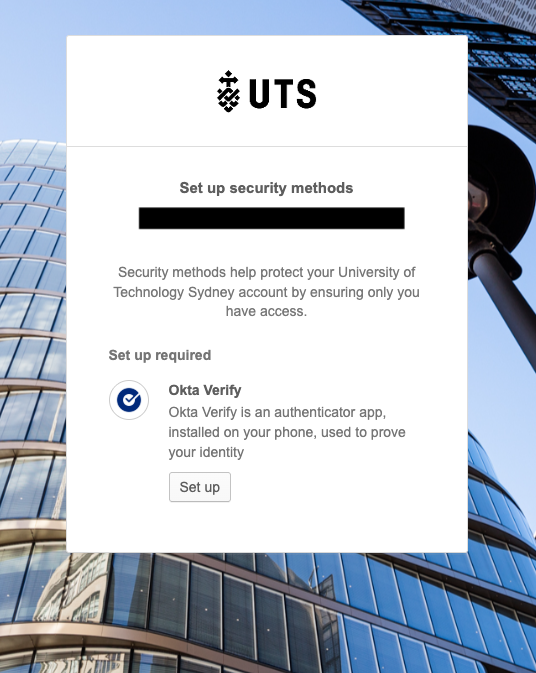
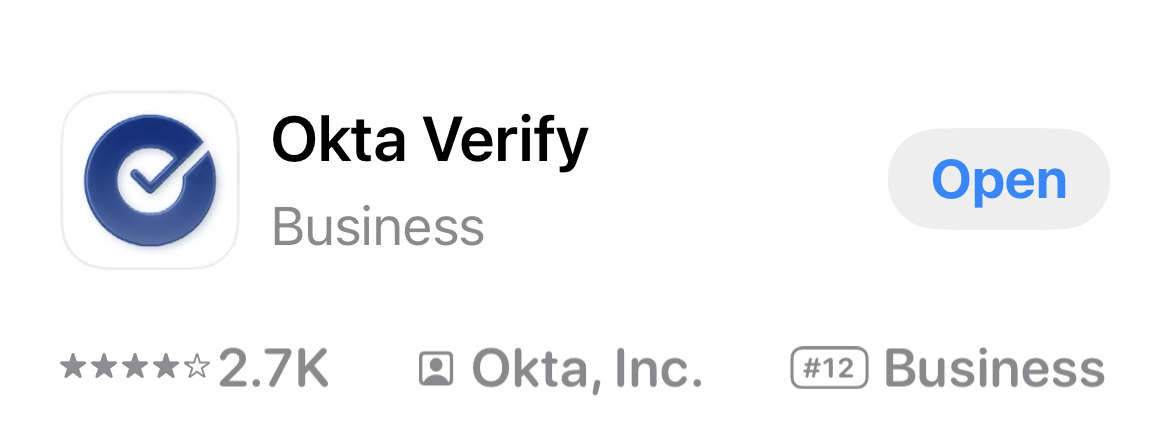
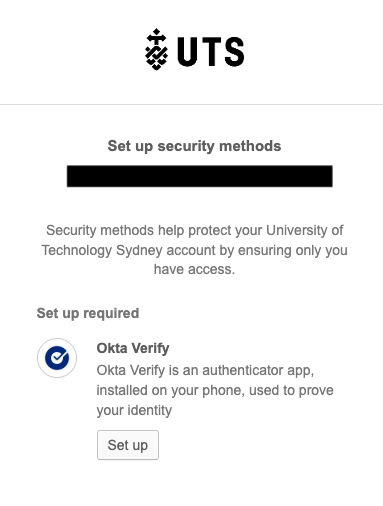
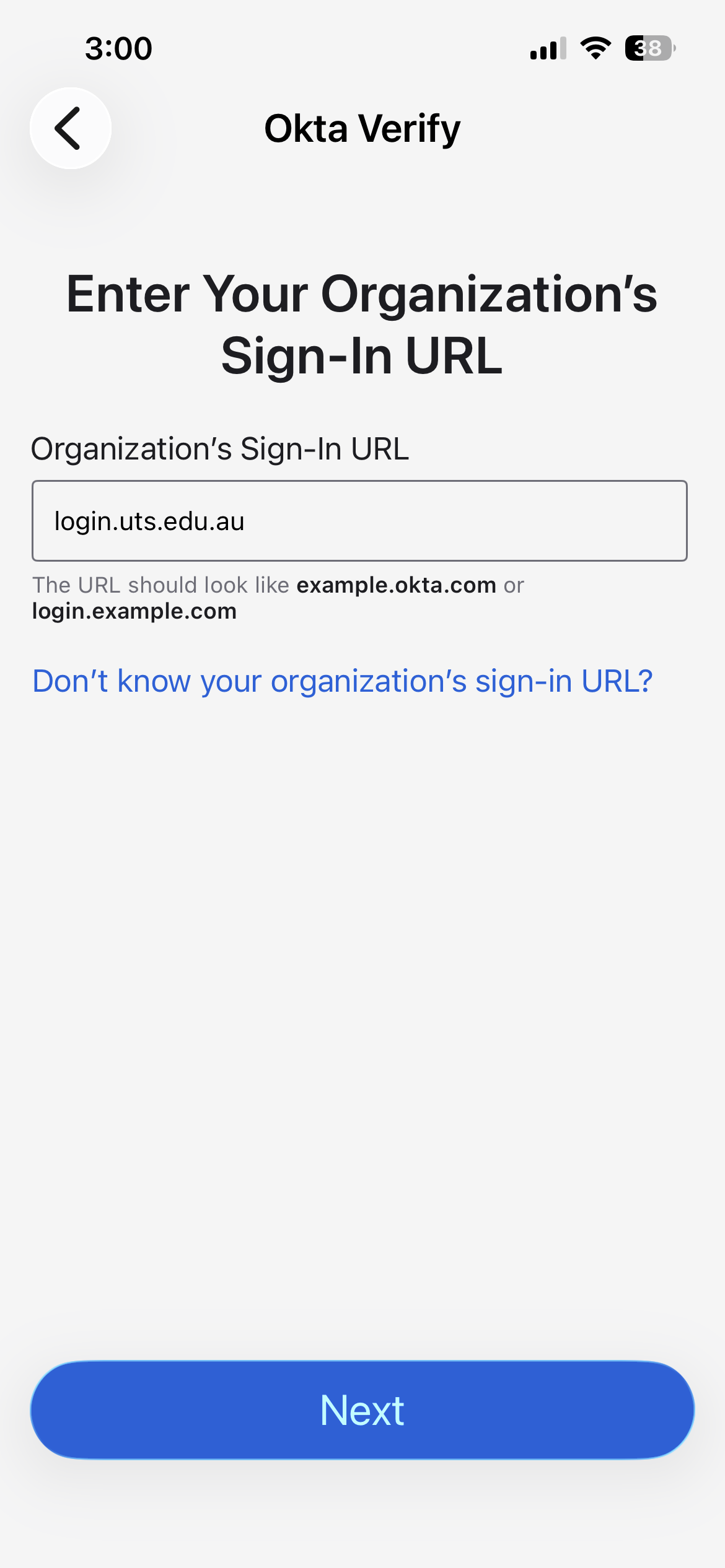
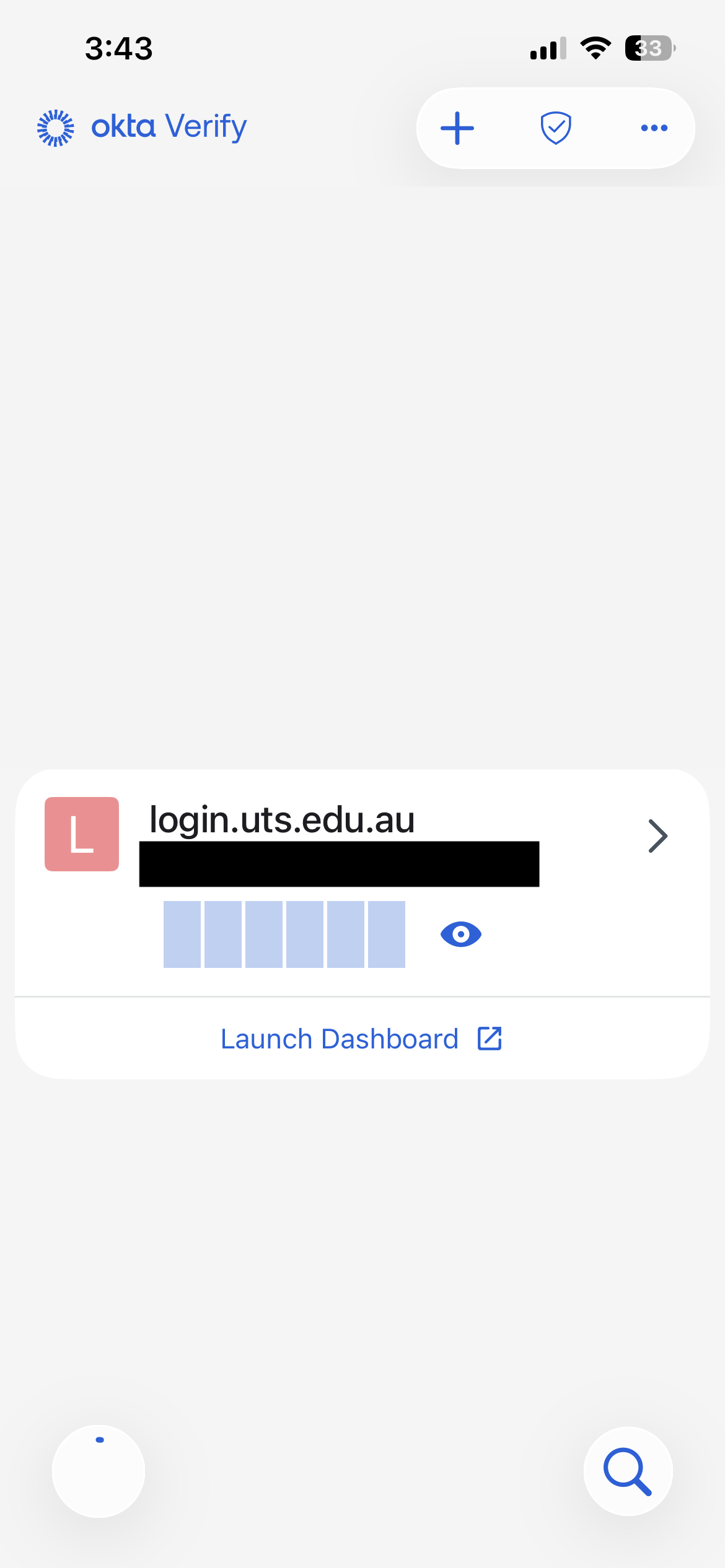
The MFA solution at UTS is the Okta Verify app:
- It is the preferred, simplest and easiest way to authenticate your identity (push a button rather than enter a code).
- Available on Google Play and Apple iOS app stores for compatible smartphones.
- It does not require internet access for ongoing use.
- You can set up Okta Verify on many devices, this means you can verify from your phone, tablet and laptop.
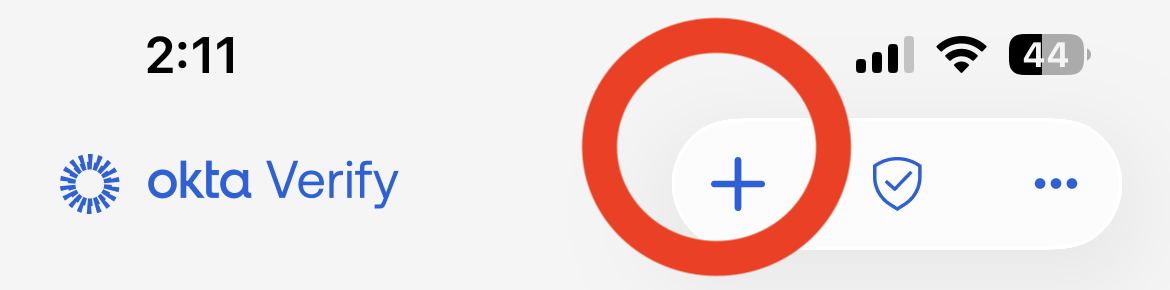
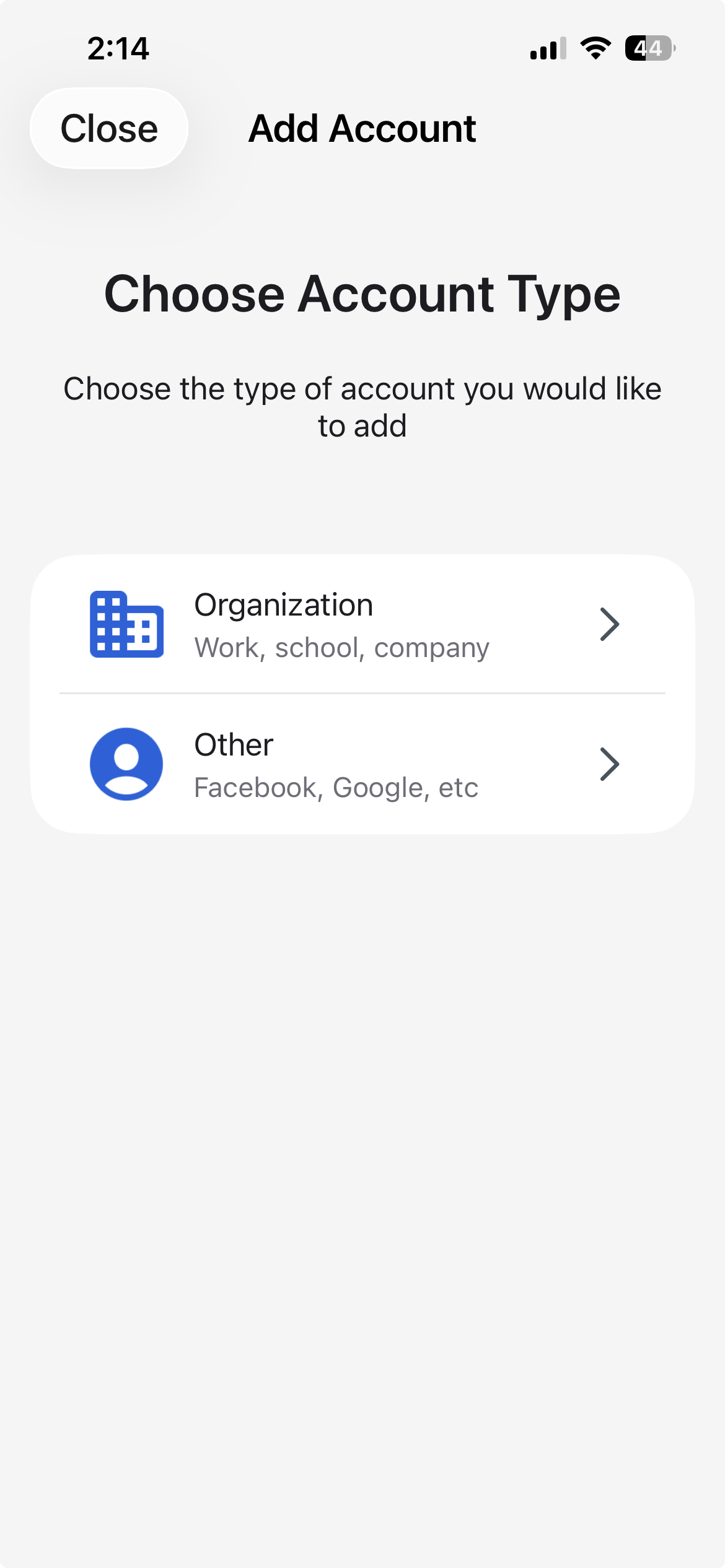
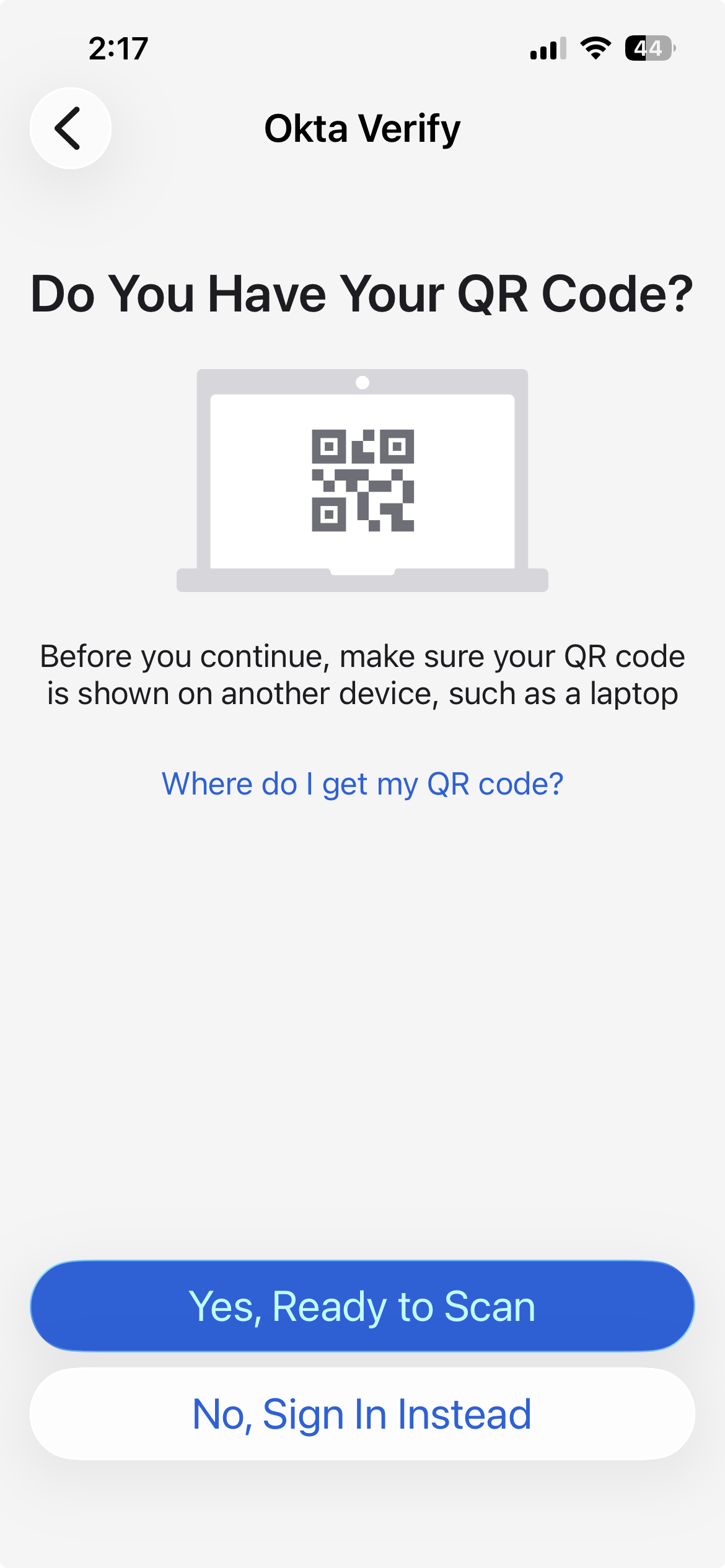
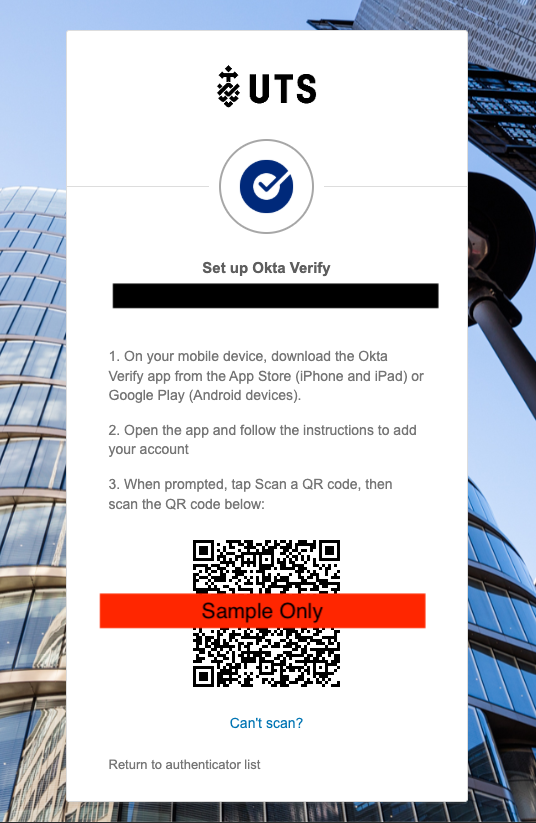
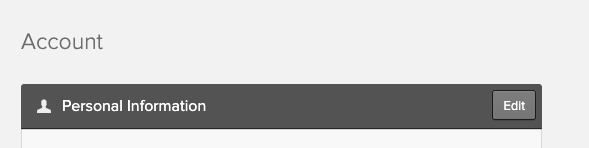
Setting up MFA

Need help with MFA or your alumni password?
Head to our MFA Help page or reach out to one of our dedicated MFA Support Services.
-
Off campus
Phone: IT Support on +61 2 9514 2222
Hours of operation during sessions:
Monday to Friday — 8:00am to 9:30pm AEST/AEDT
Saturday and Sunday — 9:00am to 5:00pm AEST/AEDT -
On campus
You can contact IT Support by calling 2222 from an internal phone - internal phones are available from Security on Level 3 of Building 1, Broadway (the UTS Tower), from all classrooms, and other locations around UTS campuses.
IT Support Centre in-person help:
CB10.02.212 Broadway
Hours of operation:
Monday to Friday — 9:30am to 4:30pm AEST/AEDT
Important
You will receive a notification email from the UTS Identity Team (login-noreply@uts.edu.au) when you change your password or make changes to your MFA. If you receive such an email when you haven’t initiated the password or MFA change, use the ‘Report Suspicious Activity’ button in the email to let us know as this may indicate an unauthorised person is trying to access your alumni account. Note: Your location for this email is based on the information provided by your internet provider – not Okta.